

Microsoft Teams works for project management when each client or project has its own channel, a Planner tab holds the tasks, and the Shared tab holds the documents. The setup is the easy part. What usually breaks is the step between a client message and a task on the board.
This guide covers a practical setup, what each Planner tier gives you, and how to keep the board current without retyping every request. All prices are Microsoft's published US prices.
Set up Teams for client projects
- Pick a structure. Use one team per client with a channel per project, or, if your clients are small, one team with a channel per project. A team can have up to 1,000 channels, so you won't hit the cap (Limits and specifications for Microsoft Teams). If clients will join, give them separate teams or channels with restricted membership, because standard channels are visible to everyone in the team.
- Add a Planner tab to the channel so the tasks sit beside the conversation.
- Keep documents in the Shared tab. Standard channels store files in folders in the team's SharePoint site. Private and shared channels have their own SharePoint sites.
- Agree where decisions are posted, for example the channel Posts, and tell people. Nobody else can see a decision made in a side chat.
- Decide how clients take part. Shared channels can include people outside the team, but external participants need Microsoft Entra work or school accounts, and both organisations must configure B2B direct connect (Microsoft Learn).

Five steps to set up a client channel
Planner can now be added as a tab in standard, private, and shared Teams channels. Check your organisation's settings and the client's access before you promise a shared Planner board.
What each Planner tier includes
Microsoft lists a base Planner tier as part of Microsoft 365, and Planner is available as an app in Teams. Whether it's included for you depends on your Microsoft 365 plan, so check yours before you assume there's nothing to buy. Colleagues with Planner in Microsoft 365 can still edit tasks in a premium plan created by a licensed user, but the Timeline, People, and Goals views require Planner Plan 1 or a higher-tier Planner licence (Microsoft Planner plans and pricing).
| Tier | US price | What you gain |
|---|---|---|
| Planner in Microsoft 365 | Included | Grid, Board, Schedule, and Chart views, checklists, files, and labels |
| Planner Plan 1 | $10.00 per user per month, paid yearly | Sub-tasks, premium templates, backlogs and sprints, Timeline (Gantt), People view, goals |
| Planner and Project Plan 3 | $30.00 per user per month, paid yearly | Portfolios, baselines, and critical path, advanced dependencies, Project desktop app |
Basic plans have limits: 3,000 active tasks per plan, 200 buckets, and 20 assignees and 20 checklist items per task. Microsoft can change these without notice (Planner limits).
People often ask about Project Online, which retired on September 30, 2026. Microsoft says the retirement doesn't affect Project desktop, Project Server, or Planner (Microsoft Planner Blog). Project for the web and the Project and Roadmap apps in Teams were retired in August 2025, when Microsoft folded them into Planner (Microsoft Tech Community).
Where Copilot fits
Microsoft says you need a Microsoft 365 Copilot license to use Planner Agent and its AI capabilities. Planner Agent can use Teams conversations, emails and meeting content to identify work, create tasks, and update supported task fields. Users review AI-generated changes before approving them.
Assigning tasks in Teams
In the Planner tab, each task gets an owner, a due date, and a bucket. Keep that routine boring and consistent: every task has one named assignee and a date, even a rough one, because otherwise nobody is responsible for it. If you need Outlook tasks instead, see how to create a task in Outlook calendar and assign it.
Turning a Teams message into a task
Microsoft's Work Trend Index reports that the average worker receives 153 Teams messages per weekday, and that employees are interrupted about every two minutes on average (Microsoft Work Trend Index). Somewhere in that stream is a message that changes a launch date, and someone has to get it onto the board before it scrolls out of sight.

Messages move fast. The board lags behind.
Say a client writes in the shared channel: "Can we move the launch to the 18th and add a pricing page?"
Done by hand, that means:
- creating a task for the pricing page,
- changing the date on the launch task,
- picking an owner for each,
- and telling the client it is done.
Microsoft offers some shortcuts. You can create a Planner task directly from a Teams message, and Planner Agent can create and update tasks using conversation context. Channel Agent, currently in public preview, can create and assign Planner tasks from channel messages when prompted. Someone still has to review what was captured and check that the board reflects the latest request.
If you're doing this manually, make one person responsible for it. Once a day, they scan each client channel for requests, date changes and decisions, and check that each one has a task with an owner and a date. Anything missing gets fixed that day.
How Jensi keeps the board current from Teams
Jen, Jensi's AI agent, does that daily scan for you. Microsoft approved Jensi's Teams integration.
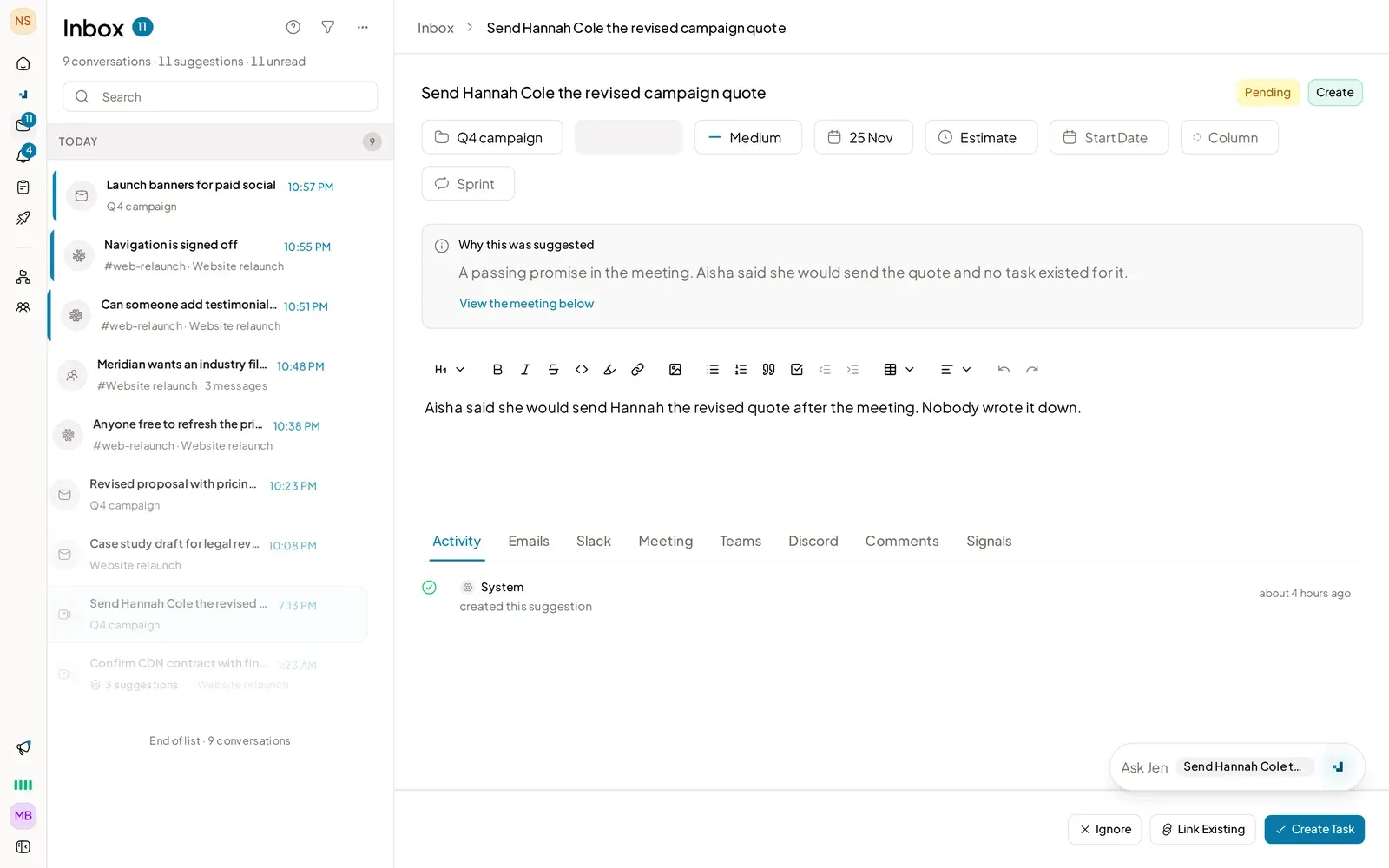
A pending suggestion with owner and due date
Using the same client message:
- Jen reads the Teams channel the client wrote in.
- She links the message to the right project.
- She suggests two updates: a new task for the pricing page, and a date change on the launch task.
- A person approves each one. The source message stays attached to every suggestion.
Approved changes land on Jensi's own board and sync both ways with Jira Cloud for linked projects. By default, new tasks and changes wait for a person to approve them. Two opt-in settings let high-confidence subtasks and Slack asks be added automatically. Both are off by default, and neither applies to projects linked to Jira. Owner, date, status, and title changes on existing tasks always wait for a person. See how Jensi tracks client requests across Slack, email and calls.
Where Jensi fits
Planner alone is enough when requests are few and one person enters them. Add Jensi when requests arrive faster than anyone can retype them and the board keeps drifting from the channel. You can sign up for Jensi and connect Teams to see what Jen suggests from your own channels.