

The three ways to turn an email into a task
An email asks for something. Someone has to turn that into a task with an owner and a date, in whatever tool the team actually uses. There are three real ways to do this, and each one stops at a different point.
Native email and task features
Outlook and Gmail both let you turn a single email into a task by hand. In Outlook, you can drag a message to the Tasks pane or use the My Day view to pull a message into To Do. It works well for one person managing their own list. It does not assign an owner, set a project date, or tell anyone else the task exists unless you do that manually too. Microsoft documents the steps for To Do in Outlook across classic Outlook, new Outlook and the web. The exact Outlook steps are in the next section.
Rule-based automation
Tools like Zapier connect a trigger (a starred email, a saved Slack message) to an action (create a task in Trello, Notion, To Do and similar apps). Zapier's own blog describes the structure: when this happens, do that. It is a solid way to stop copying information by hand, for a rule you can state in one sentence. It creates a task once, when the trigger fires. It does not read the rest of the thread.
AI suggestion with a source link
A third approach reads the conversation itself, not just a single triggering message, and suggests a task or a change to an existing task for a person to approve. The suggestion keeps a link back to the email it came from. This is where Jensi fits, and we cover it below.
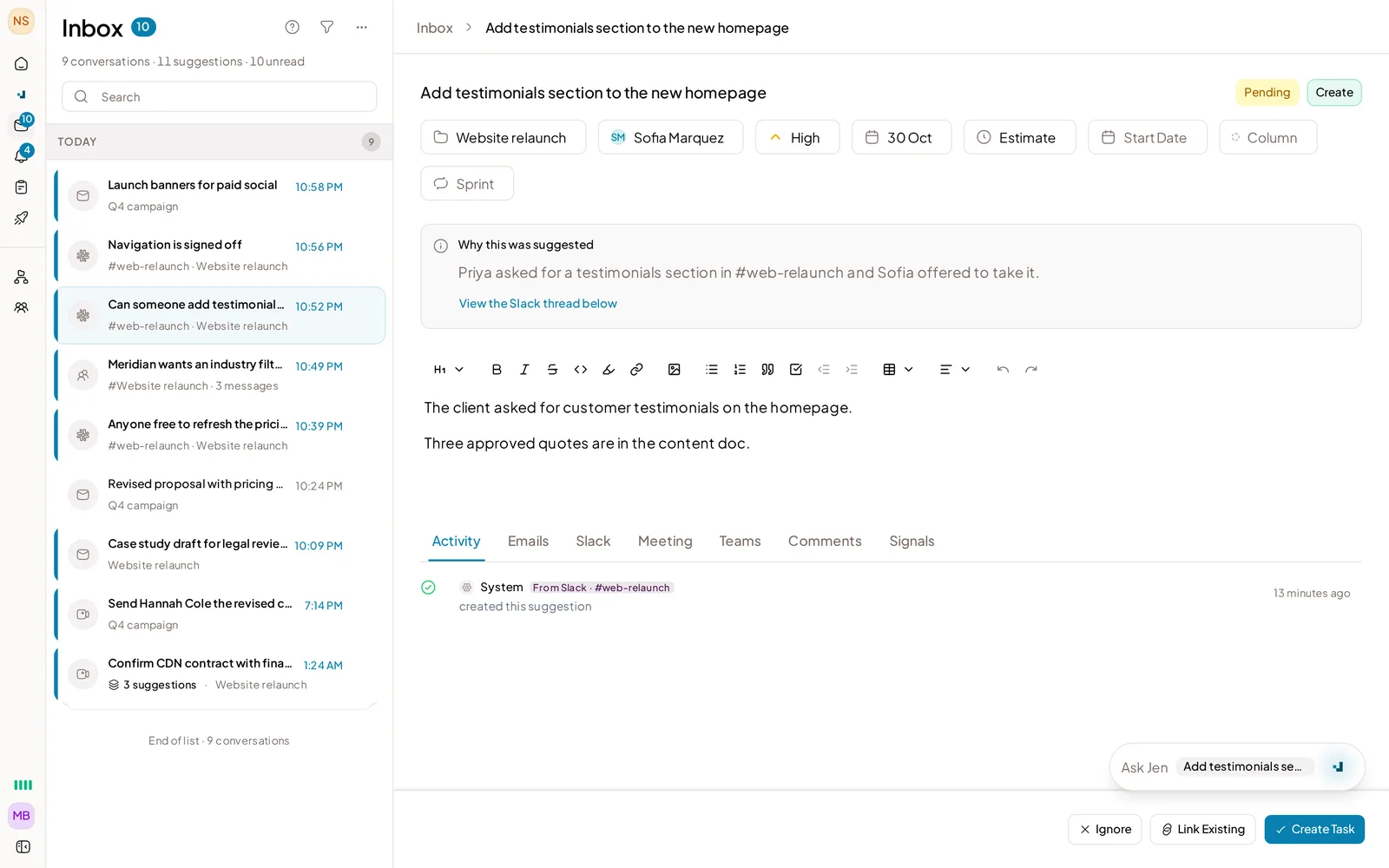
Asked in Slack, ready to track
Email to task in specific tools
Email to task in Outlook
Outlook gives you two ways to act on an email, and they behave differently.
- Flag the email. A flagged email shows up in your to-do list, but it stays attached to the message. If you delete the message, it also disappears from the To-Do List and the Tasks peek, because flagging does not create a separate task.
- Create a task from the email. In classic Outlook, drag the message to the To-Do Bar or onto the Tasks icon in the Navigation Pane. In new Outlook, drag the message to the To Do tab in the My Day pane while Mail is open. The task is a separate item, so it survives if the email is deleted, and it can carry its own due date and reminder.
Either way, the task starts on your own list. To block out time for it or hand it to a colleague, follow our guide on how to create a task in Outlook calendar and assign it.
Email to task in Jira
Jira Cloud can create issues from incoming email through its own email handler, and many teams add an automation rule or a connector like Zapier when they need more flexible rules. Check Atlassian's documentation for what your plan supports. Jensi takes a different route here: it has two-way sync with Jira Cloud, so a task Jensi suggests, once approved, can land as a Jira issue, and changes made in Jira sync back. Auto-accept settings do not apply to projects linked to Jira; every suggestion on a Jira-linked project still waits for a person.
Email to task in Asana
Asana documents its own email-to-task option, which lets you forward an email to an Asana address to create a task. Check Asana's documentation for the current steps and for what your plan supports. A Zapier connection that creates a task from a starred or forwarded email is another common route when you need your own rules. Jensi does not have a native connector to Asana today.
Email to task in ClickUp
ClickUp supports email-to-task through its own forwarding address on paid plans, or through Zapier for more flexible rules. Jensi does not have a native connector to ClickUp today.
Email to task in Monday
Monday.com's path is similar: a board-specific inbound email address, or a Zapier automation. Jensi does not have a native connector to Monday today.
If your team runs projects in Asana, ClickUp or Monday, native email-to-task features or a Zapier rule are the real answer right now. Jensi's project board, and its two-way sync, currently cover Jira Cloud.
Where "create a task" stops
Here is the part most guides skip. The first email becomes a task. Someone drags it to a list, or a Zap fires, and a task exists. Good.
Then the client replies to the same thread two days later: the deadline moved, or the task needs a different owner, or the scope changed. Native tools do not watch for that. Zapier does not either, since a Zap fires on its original trigger and does not reread the thread for a task it already created. The new information sits in the inbox while the task on the board quietly goes stale.
This is the real gap in "email to task." Creating a task once is a solved problem. Keeping it current as the conversation continues is a separate one, and most methods do not attempt it.
Keeping the source attached as the thread continues
Jen, Jensi's AI agent, reads Gmail and Outlook, along with Slack, Microsoft Teams and meeting notes from notetaker emails. She links each message to the project and task it affects. When a reply changes a deadline or names a new owner, Jen suggests the update: a new date, a new owner, a status change, a different description, whichever applies. A person reviews and approves each suggestion before it moves. The suggestion keeps a link to the email it came from, so anyone checking the task later can see exactly what prompted the change.
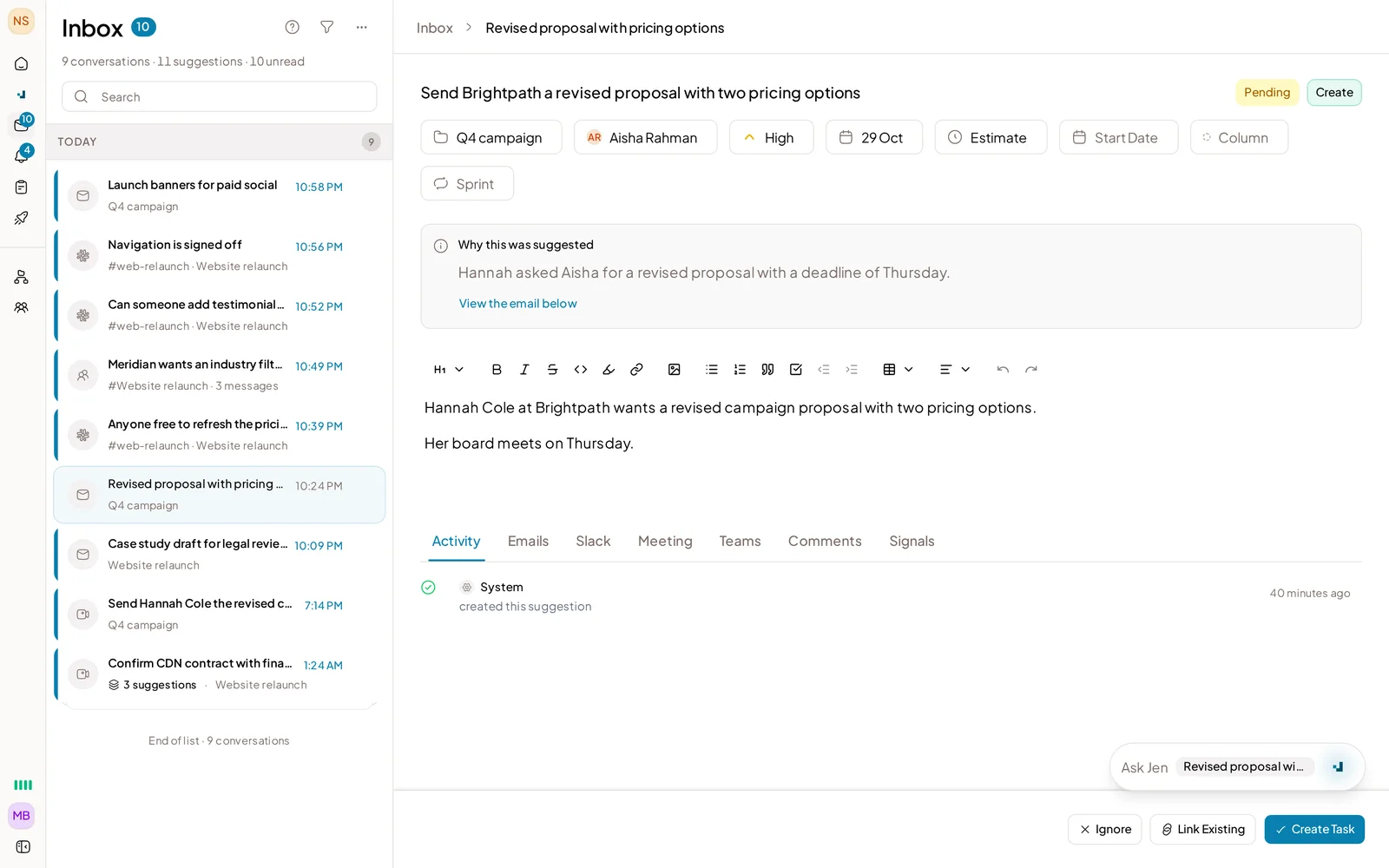
A client email becomes a suggested update
Auto-accept exists for two narrow cases: adding subtasks Jen is very sure about (with one-click undo) and turning high-confidence Slack asks into tasks. Both are opt-in, off by default, and neither applies to projects linked to Jira. Owner, date, status and title changes on existing tasks always wait for a person to say yes.
Approved changes land on the board, in Jensi or in Jira Cloud through the two-way sync described above.
Choosing a method
Match the method to the problem, not the other way around:
- Native tools (Outlook To Do, Gmail tasks) work for one person with a simple, occasional need, and no requirement to track who owns what.
- Zapier-style automation works when you can state the rule in one sentence: this kind of email always becomes that kind of task, created once.
- AI suggestion with review fits when email threads affect tasks that already exist on a shared board, and someone needs to see what changed and why before it sticks.
Most teams end up using more than one. A person might still drag an email to their own list. The team's shared board is a different problem, and it is the one that gets stale fastest.
Where Jensi fits
If your team is losing track of date and owner changes that show up mid-thread, after the first task already exists, that is the specific gap Jensi is built to close. You can read more about how it handles requests across Slack, email and calls, or see how it keeps a decision log from meetings and email. You can also sign up and connect your inbox to see what Jen suggests on your own threads.
One honest limitation: Jensi reads email, Slack, Teams and meeting notetaker emails. It does not read documents, WhatsApp, or any source outside that list, and it does not sync natively with Asana, ClickUp or Monday today. Check your own stack against that list before you decide this is the right fit.