

What counts as a task in Outlook
Outlook uses the word "task" loosely, and that is the real source of confusion. If you want to know how to create a task in Outlook calendar, the first thing to sort out is which of three objects you actually need, because they look similar but behave differently:
- A flagged email stays attached to the message. It shows up in your to-do list, but if you delete the email, the flag disappears with it.
- A task (created through the Add a task field, or through To Do) is a separate item. It survives even if the original email is deleted, and it can carry its own due date, reminder and notes.
- A calendar event is a block of time on a specific day. It is not a task at all, though you can create one from a task.
If you have ever flagged an email meaning to deal with it later, then deleted the email and lost the flag, this is why. A task and a flagged email are not the same object, and the rest of this guide treats them separately.
How to create a task in Outlook
The exact steps depend on which Outlook you are using. Check for a File tab on the ribbon: if you see one, you are in classic Outlook. If not, you are in new Outlook.
In new Outlook
Open the To Do icon on the side margin. This opens the Tasks pane, where you can select a list or create a new one. Select the Add a task field, type the task's title and press Enter.
In classic Outlook
Select Tasks in the navigation pane, then New Task (or press Ctrl+Shift+K). Enter a name in the Subject box, set a start or due date if one applies, and select Task > Save & Close. Classic Outlook also has a To-Do Bar, a narrow pane on the right side of the window where you can type a task directly into the "Type a new task" box.
In Outlook on the web
Select the To Do icon on the side margin to open the Tasks pane, then use the same Add a task field as in new Outlook.
How to assign a task in Outlook 365
This is where Outlook's own documentation gets thin. The native Tasks and To Do features are built around a personal to-do list tied to your account, not a shared assignment flow. Outlook does support assigned tasks through SharePoint task lists, which then appear in your To-Do Bar, Tasks view and Daily Task List, but that depends on a SharePoint list being set up separately.
If you are looking for a straightforward way to hand a task to a teammate and have them see it as theirs, check your current Microsoft 365 documentation or your admin's setup before assuming a specific flow exists. Do not expect a simple "assign to" button inside a personal To Do list; that is not how the feature is built today.
How to get a task onto your calendar
A task and a calendar event are different objects, and Outlook does not put tasks on your calendar automatically. You have to move them there yourself.
In new Outlook and Outlook on the web, open Calendar, then open the My Day pane from the toolbar. Select the To Do tab, find the task, and drag it onto the day and time you want. This creates a calendar event from the task; the task itself still exists separately in your list.
The My Day pane also shows your calendar events and tasks side by side, which is useful for a quick look at what is scheduled versus what is just sitting on your list unscheduled.
Adding due dates, reminders and other details
Once a task exists, you can open it to add detail. Select Add due date to set when it is due, or Remind me to set a pop-up reminder for later today, tomorrow or a specific date and time. You can mark a due date to repeat daily, weekly, monthly or on a custom schedule. Larger tasks can be broken into steps, which show as a counter under the task name. You can star a task to mark it important, add a category to match your Outlook categories, and attach a file.
None of this is complicated on its own. The friction comes from not knowing these options exist, since they are split across several Microsoft support pages depending on which Outlook version you use.
Turning an email into a task, briefly
So how do you make an email into a task, rather than just flagging it? You can create a task directly from an email. In classic Outlook, drag the message onto the Tasks icon or into the To-Do Bar. In new Outlook, drag an email into the To Do pane while Mail is open.
If your organization uses Planner, there is also a way to create a Planner task from an Outlook email, through the Planner add-in or by forwarding the email to a Planner plan's assigned address, depending on how your admin has it set up. Check your Microsoft 365 documentation for the exact steps available to you, since this depends on your organization's configuration.
This guide stops at the mechanic. For the fuller picture, including what to do when one email turns into a task that needs more follow-up than Outlook tracks on its own, see how to turn Slack messages into tasks without losing context, which covers the same handoff problem outside Outlook.
Where native Outlook tasks stop
Outlook's task and calendar tools work fine for what one person decides to track. The limitation is that someone still has to notice the request, remember to turn it into a task, and set the due date by hand. Nothing in Outlook watches for a client asking for a date change in a Teams message, or a decision made out loud on a call, and turns that into a task on its own. A task also does not know which client project it belongs to unless you file it there yourself.
That is the specific gap Jensi works on. Jen, Jensi's AI agent, reads email (Gmail and Outlook), Slack, Teams and meeting notes, and links each conversation to the project and task it belongs to. Jen suggests the task, owner, date or status change, with the source attached. Owner, date, status and title changes on existing tasks always wait for a person to approve them; two narrow, opt-in settings let Jen add subtasks it is very sure about or turn high-confidence Slack asks into tasks without a person, and even those can be undone in one click. If your team's requests come from more than one inbox, that review step is worth a look: see how teams track client requests across Slack, email and calls.
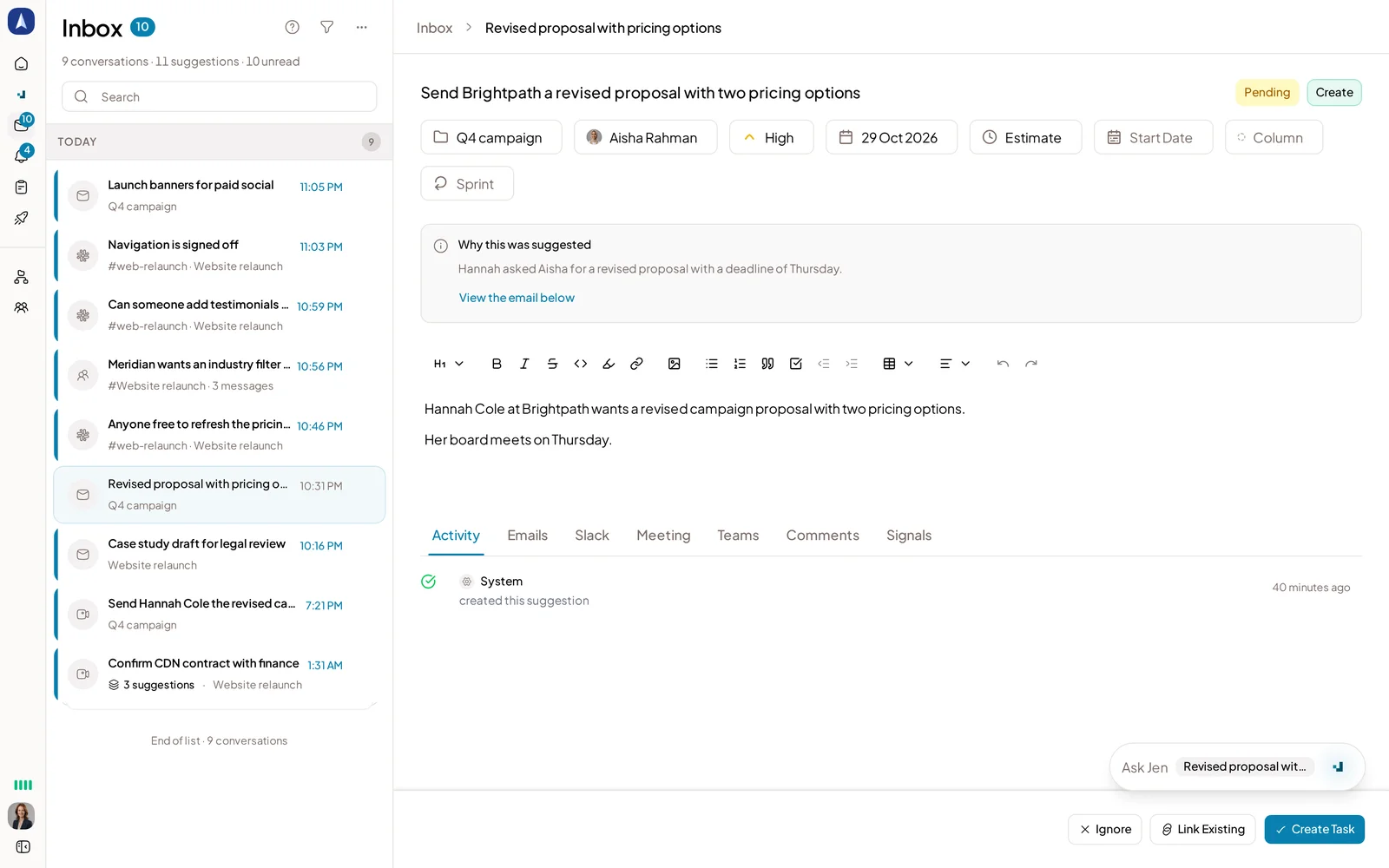
A client email turned into a suggested task
A quick way to check your own setup
Pick one project you are running right now. Open your Outlook calendar and your Tasks or To Do list side by side. Ask three questions: which of this week's commitments exist only as a flagged email, which exist as a task with no due date, and which decisions from recent calls or emails are not written down anywhere in Outlook at all. The gaps you find are the ones worth fixing first, whether that means building the habit of creating a proper task instead of flagging, or looking at where requests are entering from outside your inbox.
Where Jensi fits
If you want those gaps caught automatically instead of found during a manual check, sign up for Jensi and connect your inbox to see how it works on your own projects.